A little help.
A little further.
Every step, your way. Get to know Step On It, one simple step at a time.
Let’s get started →What would you like a hand with?
Your first steps
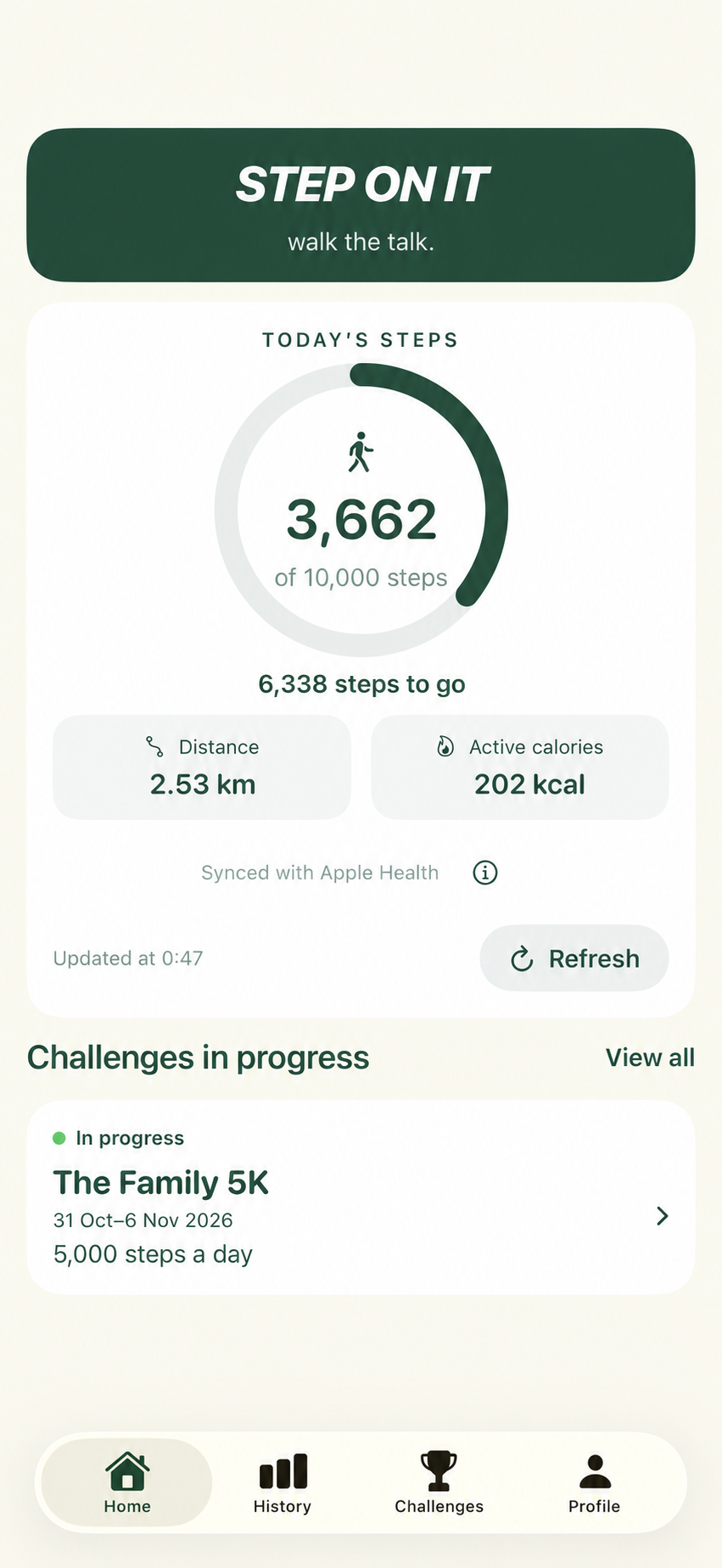
Open Home to see today’s steps, your personal goal and how many steps you have left. Distance and active calories appear below when those readings are available.
Allow Step On It to read Steps from Apple Health. Carry your iPhone or use a connected Apple Watch when you walk. Manually entered step samples are excluded.
Connect with Apple Health
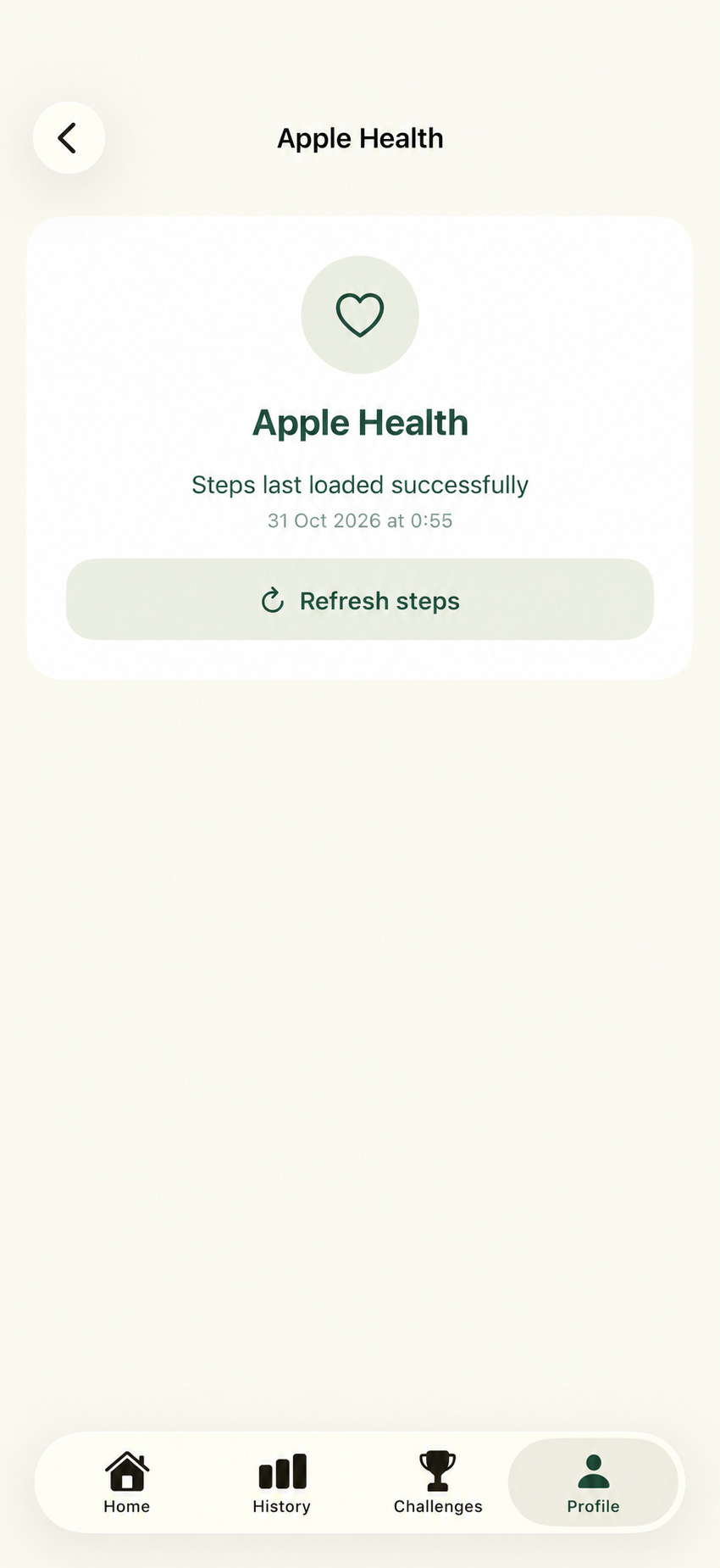
Open Profile → Apple Health to check when your steps last loaded successfully. Tap Refresh steps to request another reading.
If steps are unavailable, check Step On It’s read permissions in Apple Health, then return to the app and try again.
Find your people
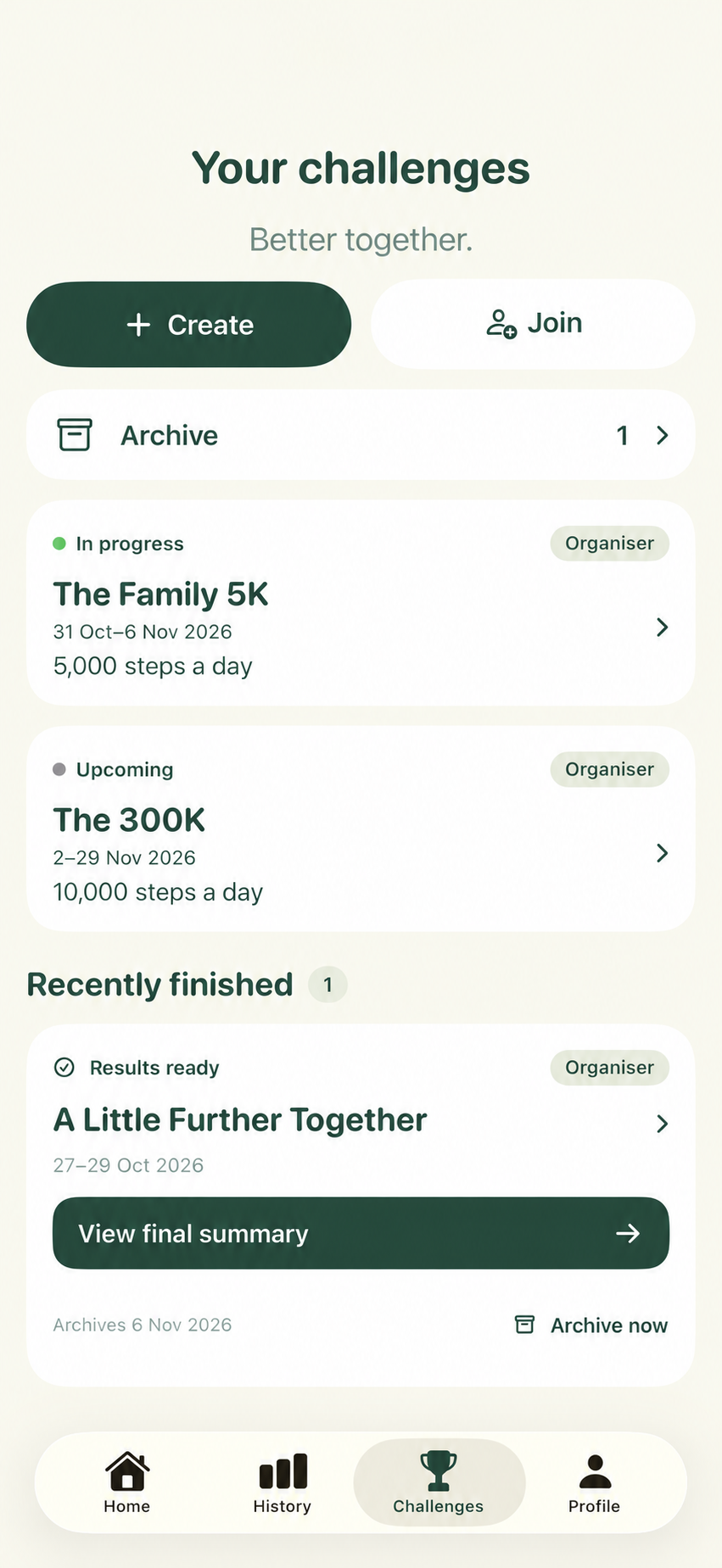
Open Challenges. Tap Create to organise a challenge, or Join if someone has sent you an invitation.
Your challenges are grouped by status. Finished challenges appear under Recently finished before moving to Archive; you can also choose Archive now.
Join a challenge
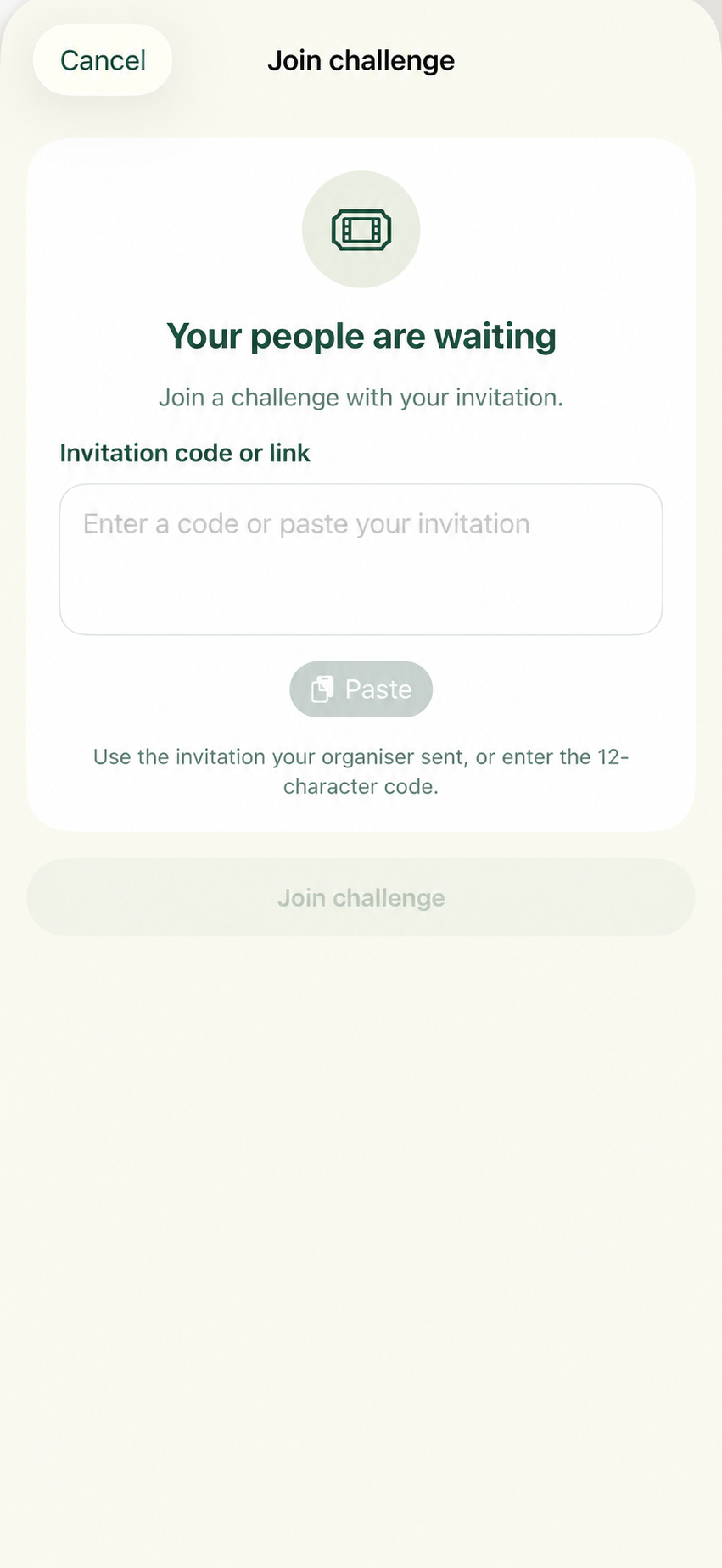
Tap Challenges → Join. Enter the 12-character code or paste the invitation your organiser sent you.
Review the challenge details and any contribution before confirming. Follow the joining and scoring information shown in the app.
Create a challenge
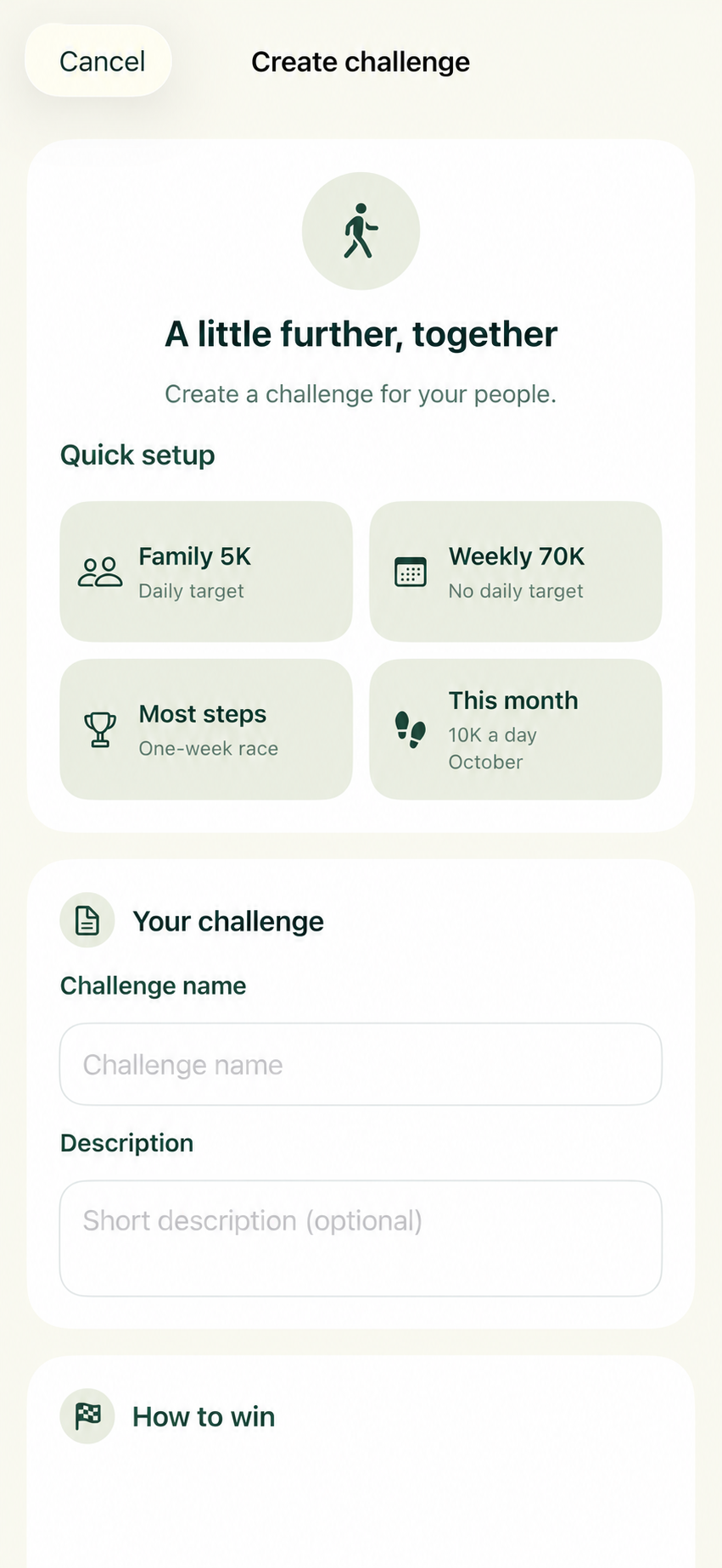
Tap Challenges → Create. Choose a Quick setup option or enter your own challenge name and optional description.
Choose How to win, the first and final day, the target and an optional contribution. Review Your challenge, then tap Create challenge.
Choose how to win
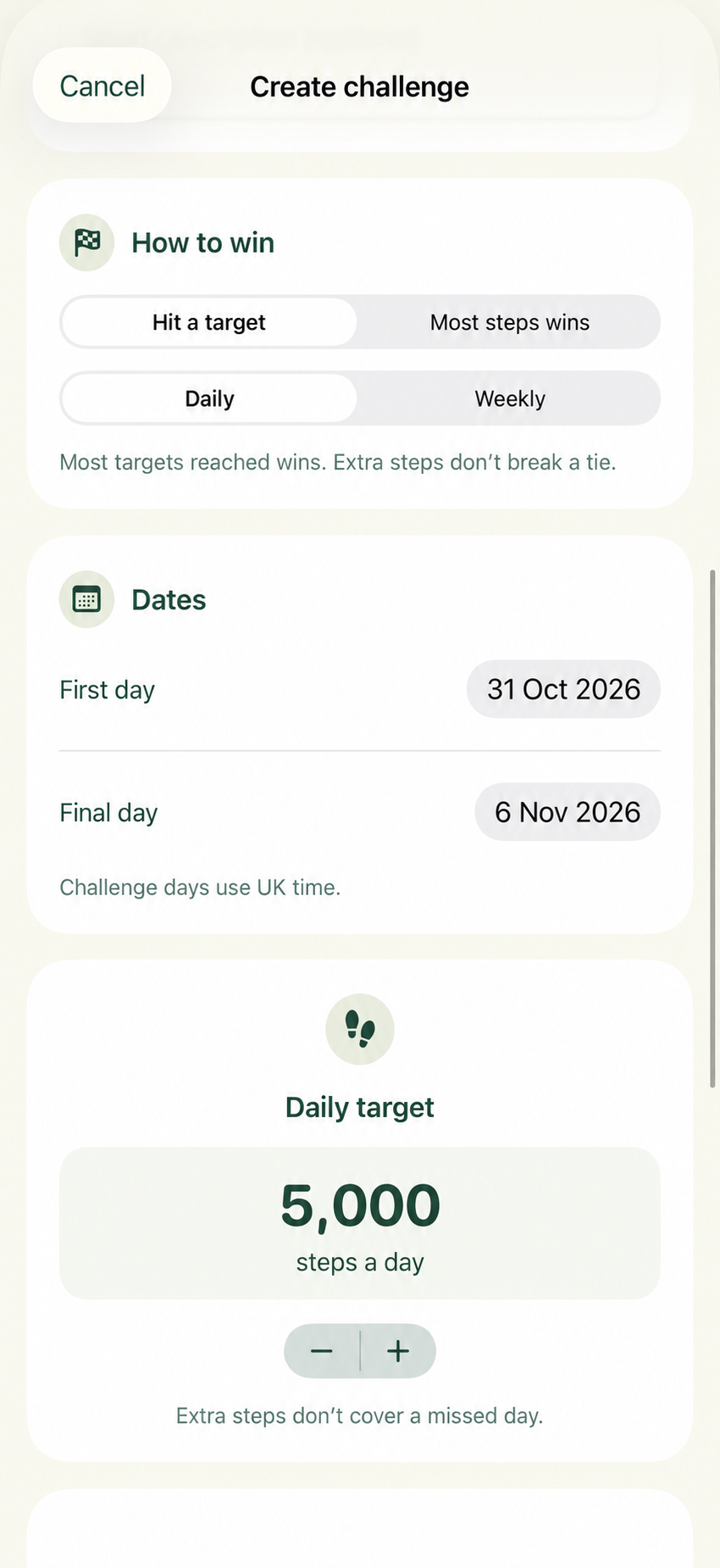
Hit a target rewards consistency: the most daily or weekly targets reached wins. Extra steps do not break a tie.
Most steps wins uses the step total. Check the selected rule before joining. Challenge days use UK time.
Share progress and invite people
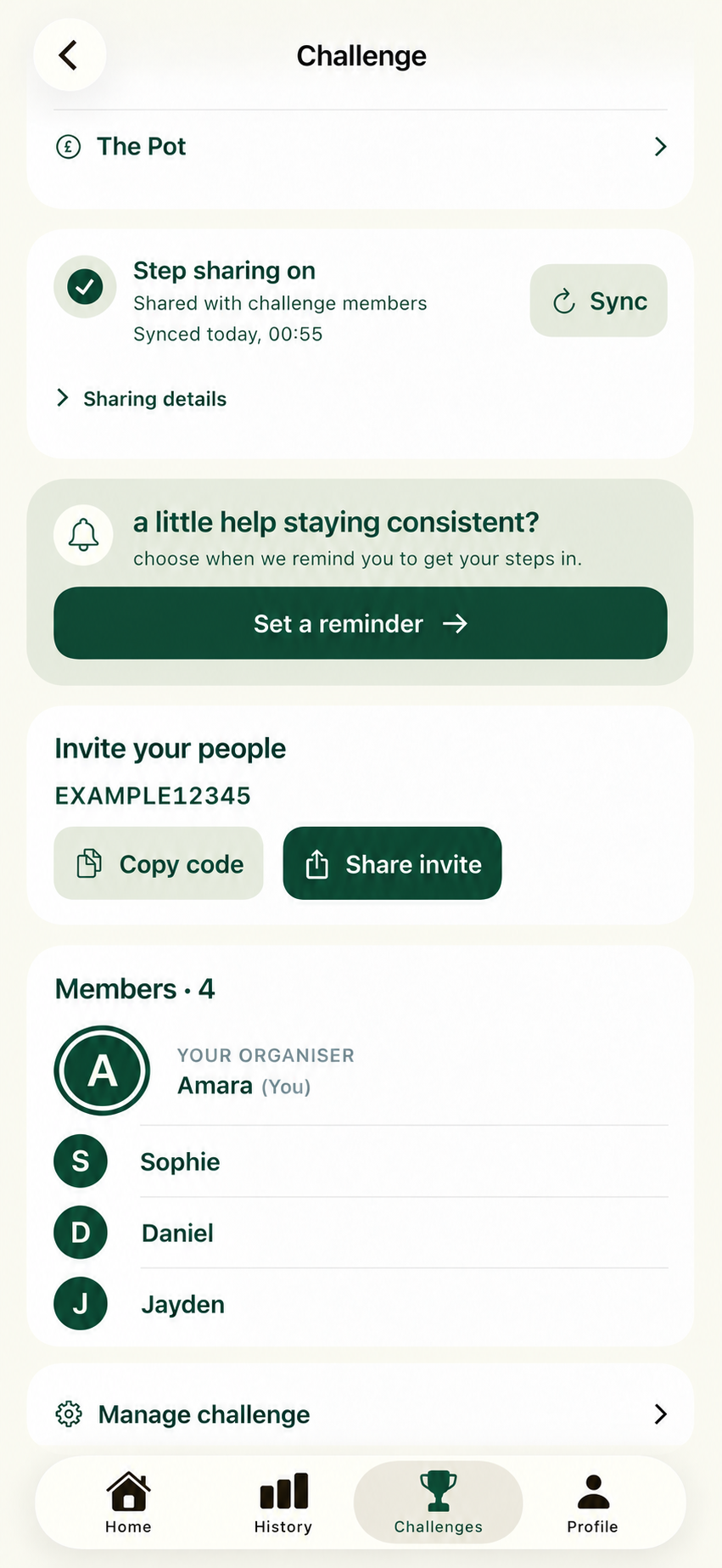
Inside a challenge, read the step-sharing explanation and choose Enable step sharing. Challenge members and the organiser can see your shared daily step totals, total and last update time; other Health measurements are not shared.
Use Sync to update shared challenge readings. Open Sharing details to manage or stop sharing. Use Copy code or Share invite to invite your people.
Set a reminder
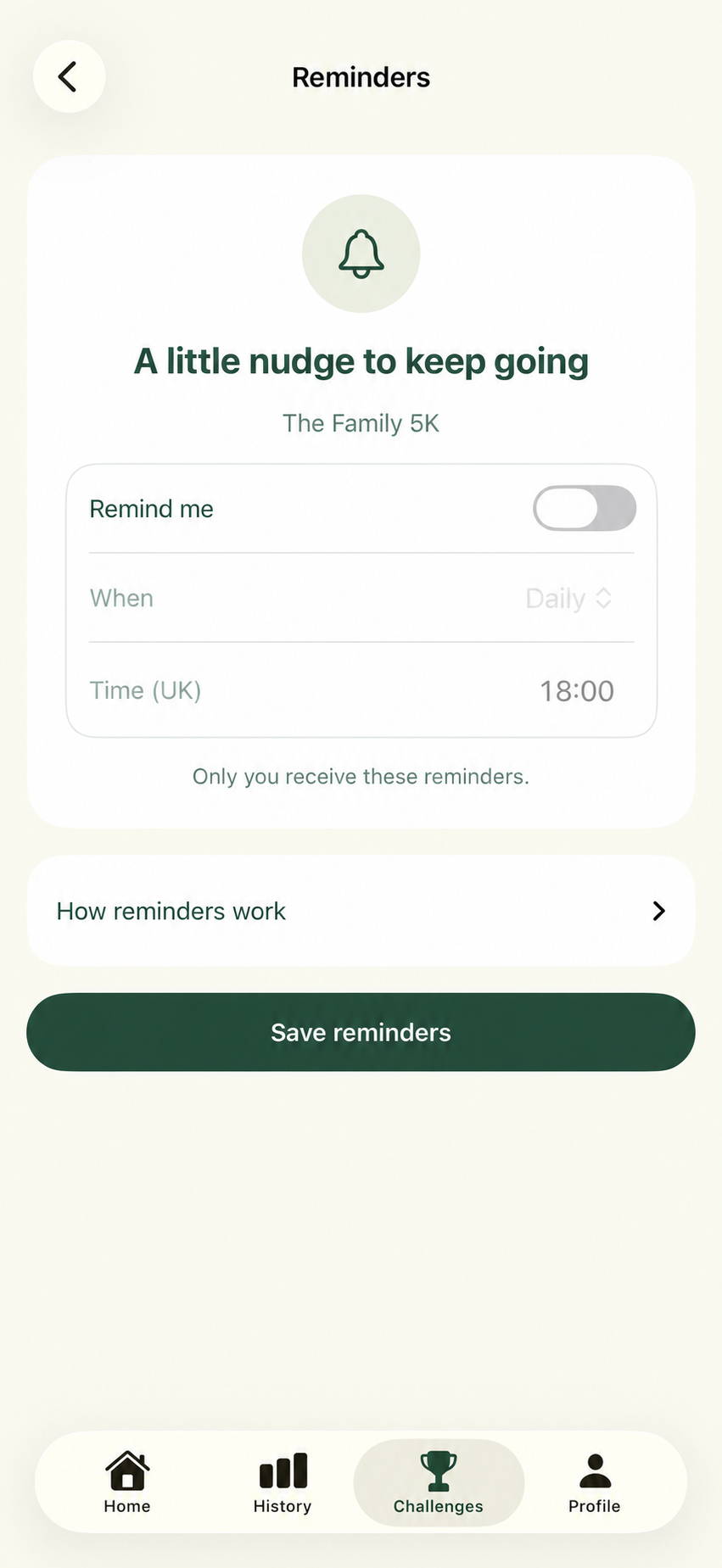
Open your challenge and tap Set a reminder, or Edit reminder if you already have one.
Turn on Remind me, choose an available option under When, and set your Time (UK). Tap Save reminders and allow notifications when prompted.
To change the time or turn reminders off, return to this page and save your changes. The screenshot shows Remind me switched off, so the timing controls are dimmed.
Understand the leaderboard
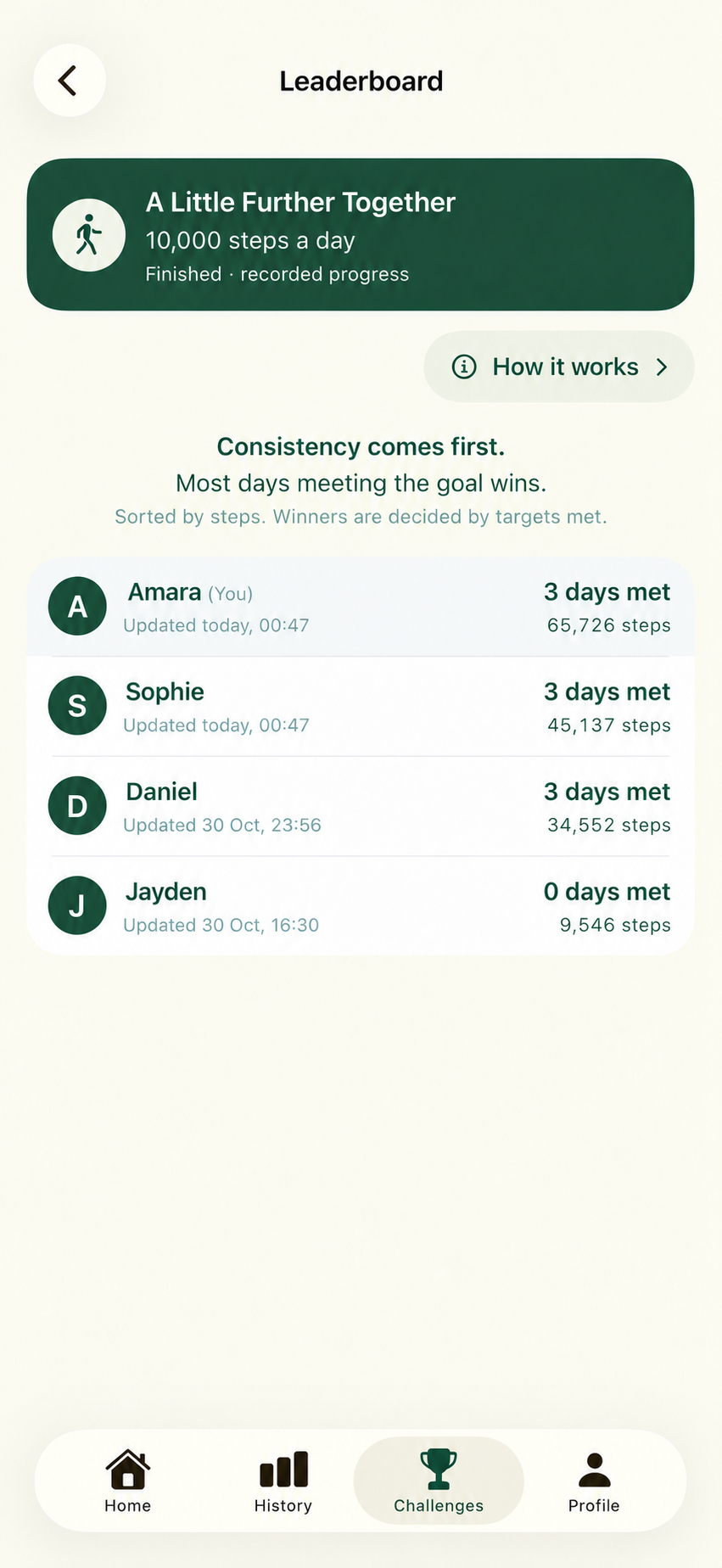
Open your challenge → Leaderboard. Read the winning rule above the list: in a target challenge, targets met decide the winner, even when the list is sorted by steps.
Use How it works for more detail. Check each member’s update time when comparing results.
Follow the Progress trail
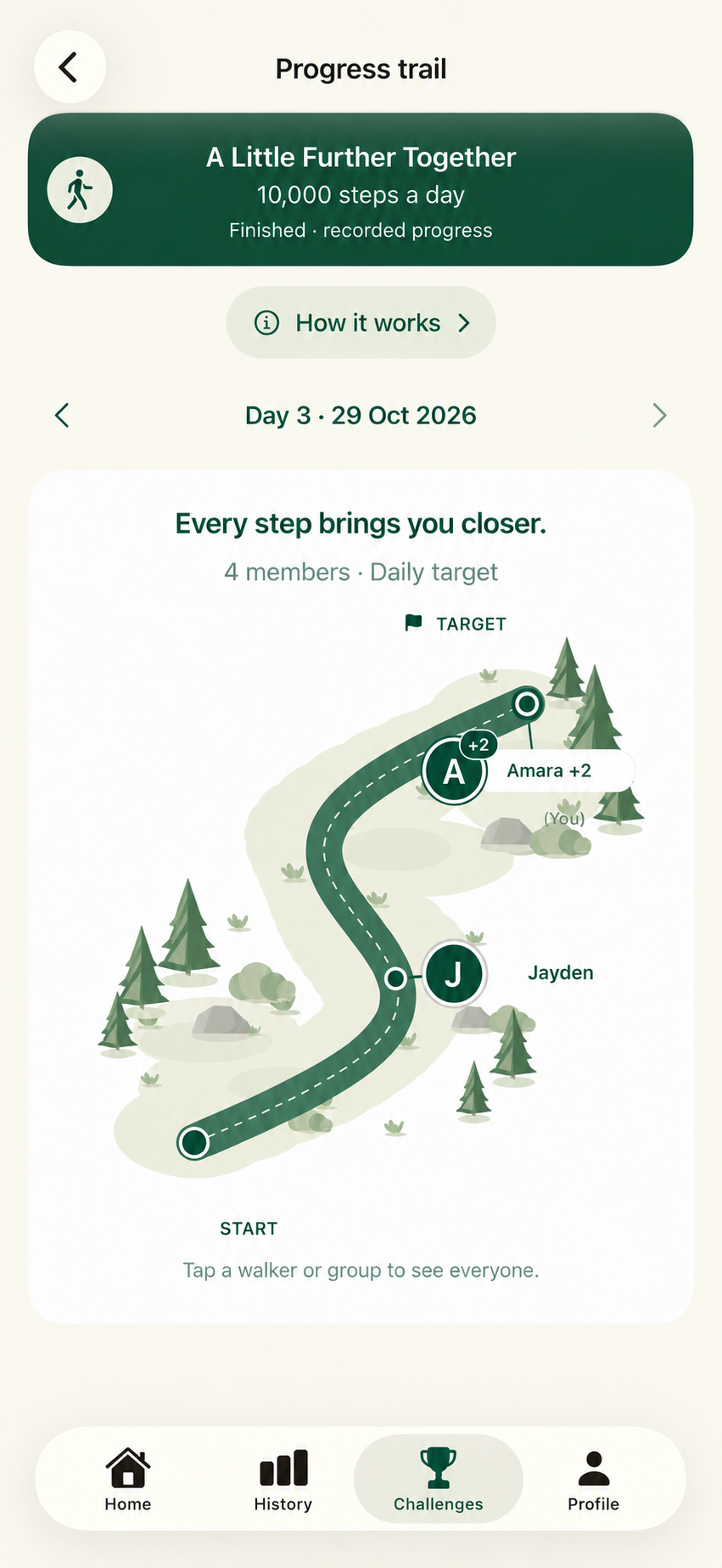
Open your challenge → Progress trail. Use the arrows to move between available challenge days or scoring periods.
Tap a walker or a group to see the members and their readings. A +2 badge means two additional members are represented at that point. Members who have reached the target can appear together at the finish.
A little encouragement
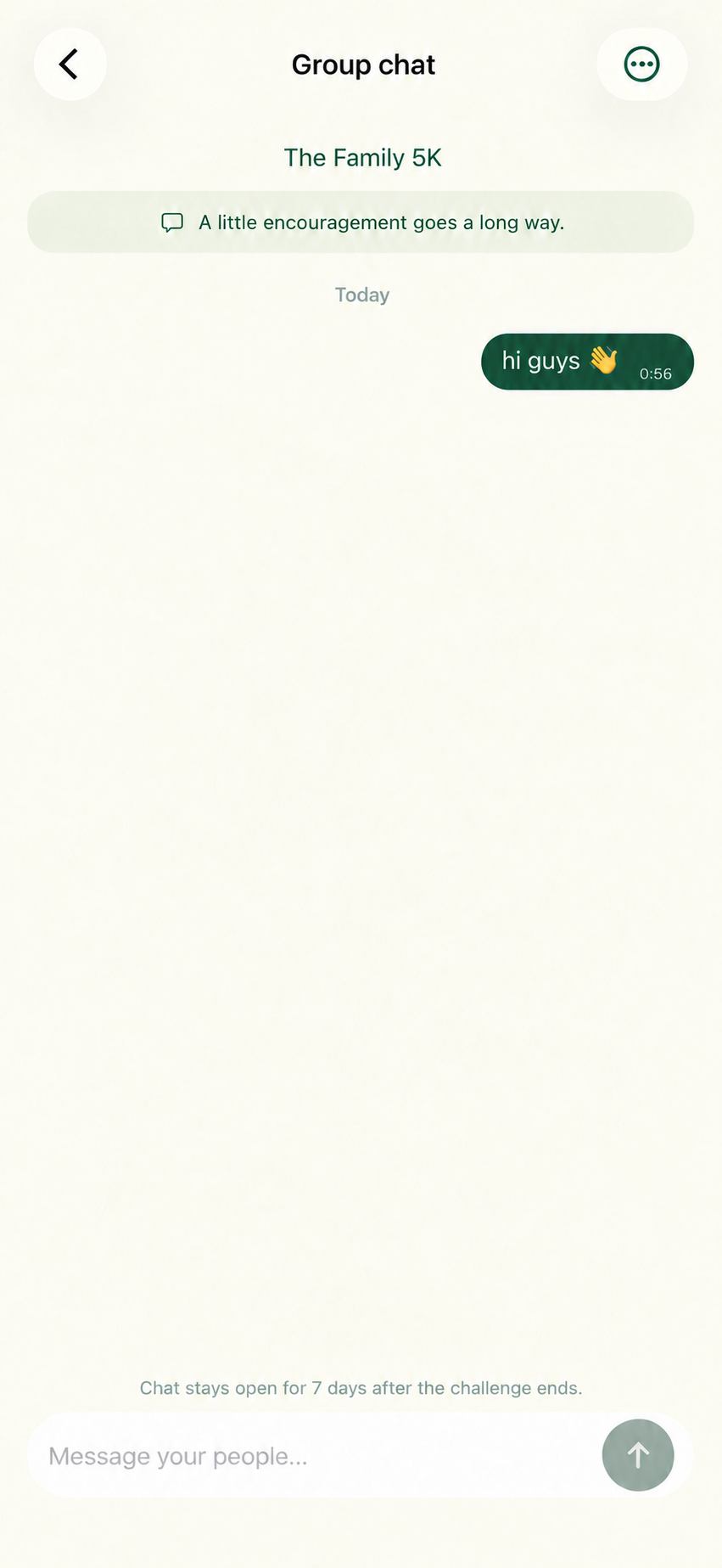
Open your challenge → Group chat. Write in the message field and tap the send arrow to encourage your people.
Sending stays open for seven days after the challenge ends. Current members can still read the chat after sending closes. Press and hold a message for the available removal, reporting or blocking actions; use the options menu for chat settings.
Understand The Pot
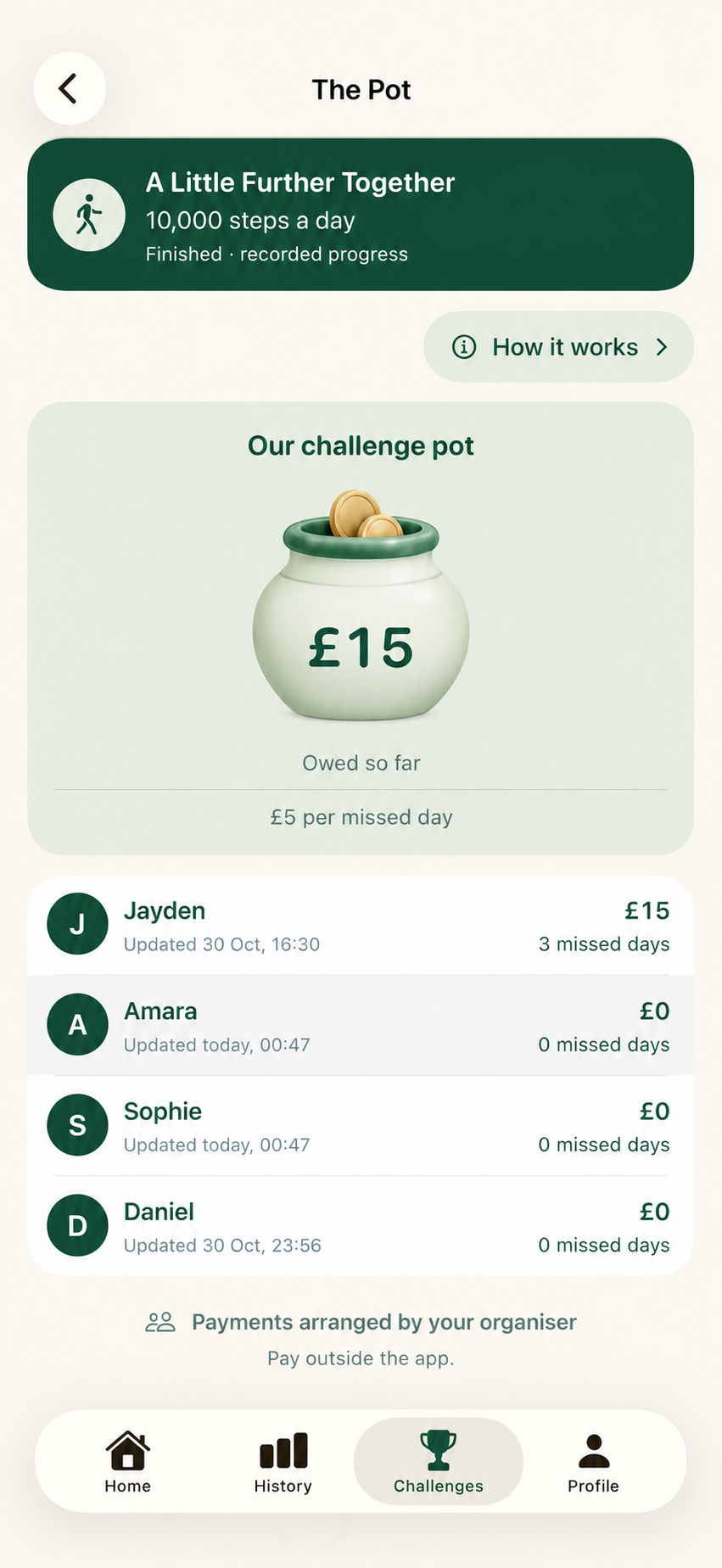
Open your challenge → The Pot to see recorded amounts owed under its contribution rule. A free challenge has no contribution.
Pay your organiser outside the app. The organiser distributes the pot to the winners. Step On It records the amounts; it does not collect or transfer the money.
Celebrate your finish
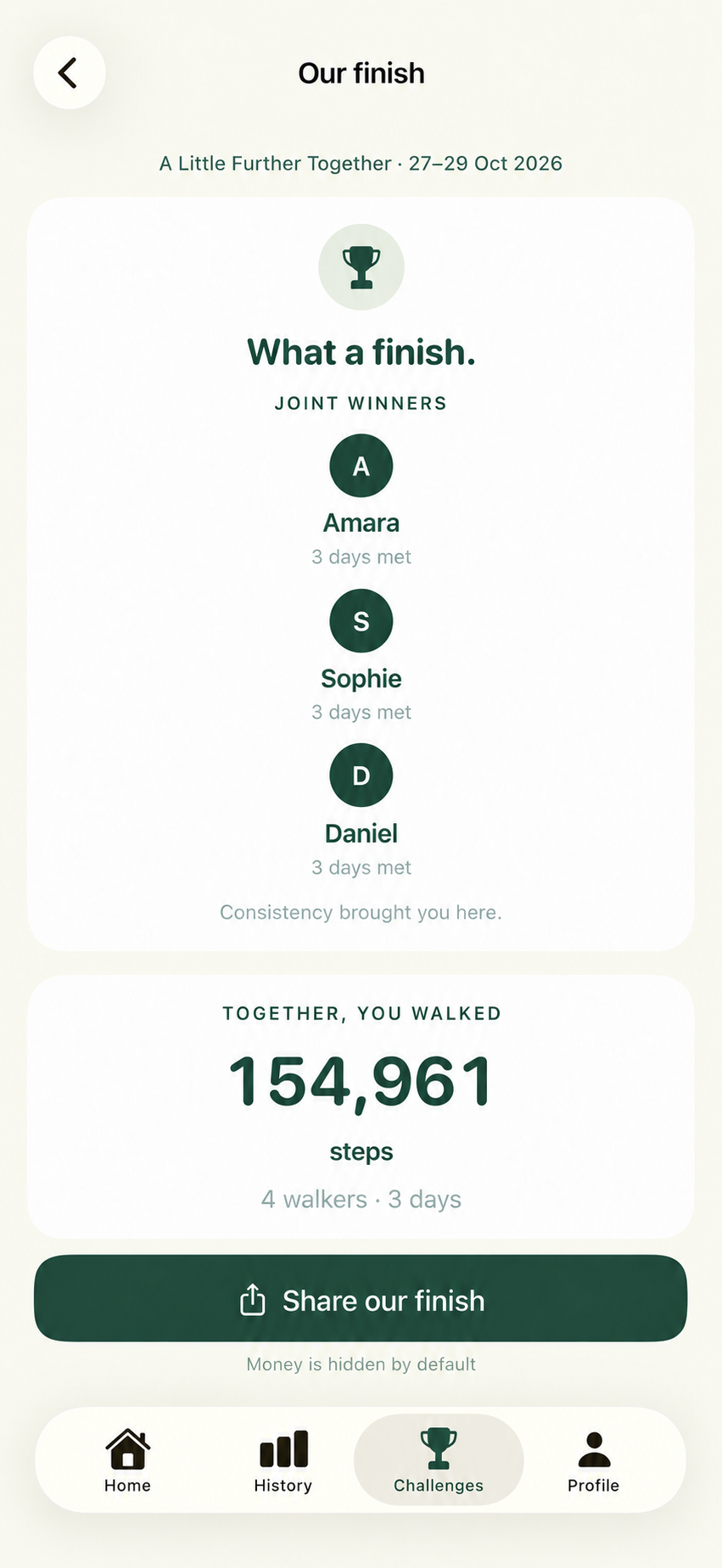
Open View final summary from a finished challenge to see the winners, the group’s steps and your own contribution to the finish.
Tap Share our finish and choose My result or Group result. Use the switches to choose whether names, winners and the challenge pot appear in your image. Check the preview, then tap Share image.
See how far you’ve come
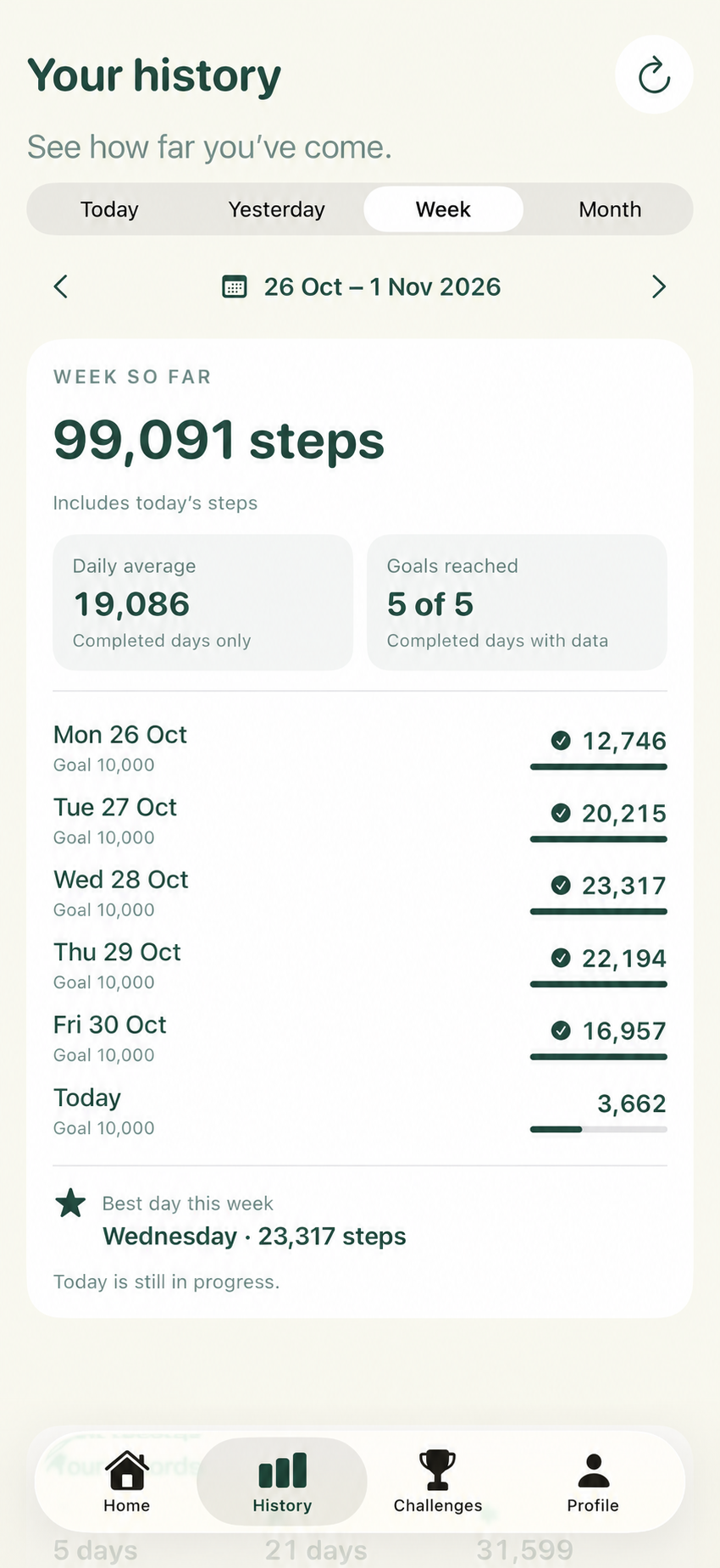
Open History and choose Today, Yesterday, Week or Month. Use the date arrows to look through earlier weeks or months.
Weekly and monthly totals include today’s steps. Daily averages use completed days; goals reached use completed days with data. Today remains in progress.
Read your monthly recap
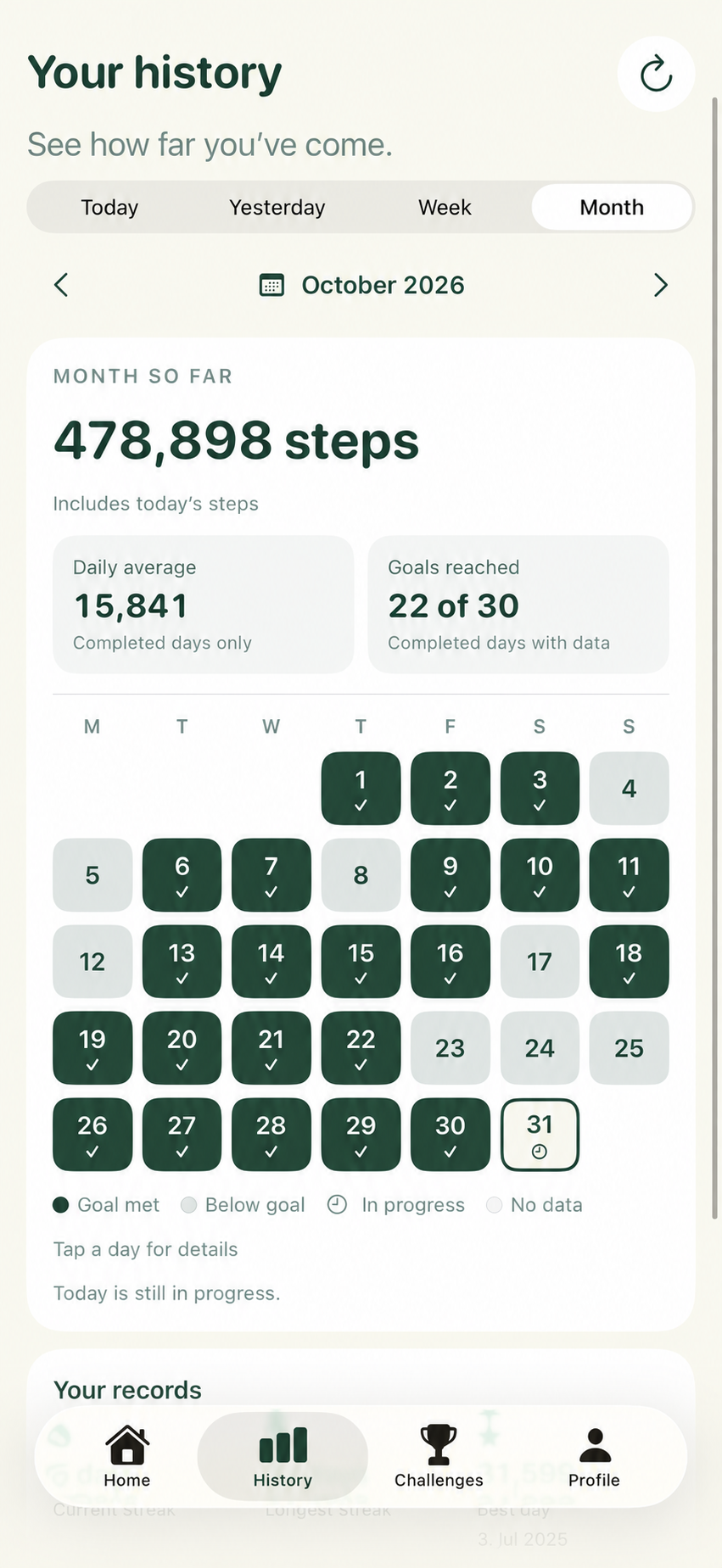
Month shows your total, daily average and goals reached alongside a calendar. Tap a day for its details.
Use the legend: green means goal met, pale means below goal, the clock marks a day in progress and No data means no reading is available.
Make it yours
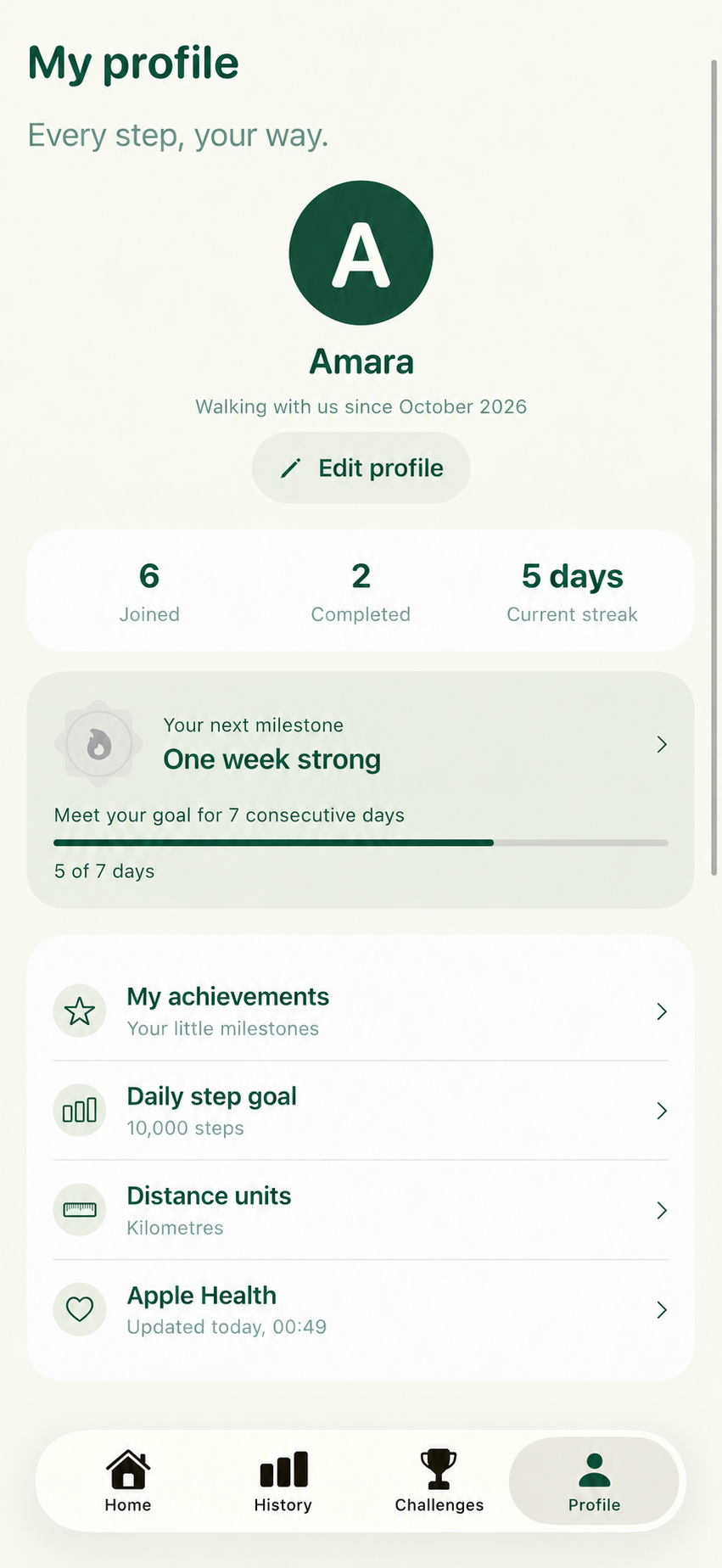
Open Profile → Edit profile to change your display details. My achievements shows milestones and your progress towards them.
Daily step goal changes your personal target from today. Earlier days keep their previous goal, and challenge targets and pot calculations stay the same. Distance units lets you choose kilometres or miles.